


How To Book Qualified Meetings with Hiring Managers for Under $100/Month

By Harrison Franke, Co-Founder of Recruitcha GTM
This guide is for you if:
- You run a 2 - to 8-person recruitment agency
- You and your business partner have been in the game for years, and previously worked at larger recruitment agencies before starting your own firm
- You know everyone in your space, and got the business off the ground through your existing network
- Your primary business development channel is referrals, and you sometimes host events
- Referrals are unpredictable, so you tried working with a generic lead gen agency for $5k a month who blasted your entire market with cold email
- 3 months went by, and the results were inconsistent, plus people you know are now wondering why you cold-pitched them when your kids go to the same school
- You’re $15k poorer and it didn’t work, so you go back to what worked before: tapping your network, taking existing clients to lunch, and hoping a referral comes in soon
Sound right?
Here’s the secret: you don’t need to pay expensive agencies to scale your business development.
I’m going to show you how to build a basic outbound system for under $100 a month that is purpose-built for Recruiters and:
- Identifies new roles according to your exact requirements every day while you sleep
- Gives you information to find and contact the hiring managers at scale for a few cents
- Contacts hiring managers on your behalf, resulting in net-new meetings booked on your calendar
Sounds too good to be true?
Here are my results over 4 weeks:
201 opportunities split 70/30 between candidates and clients.
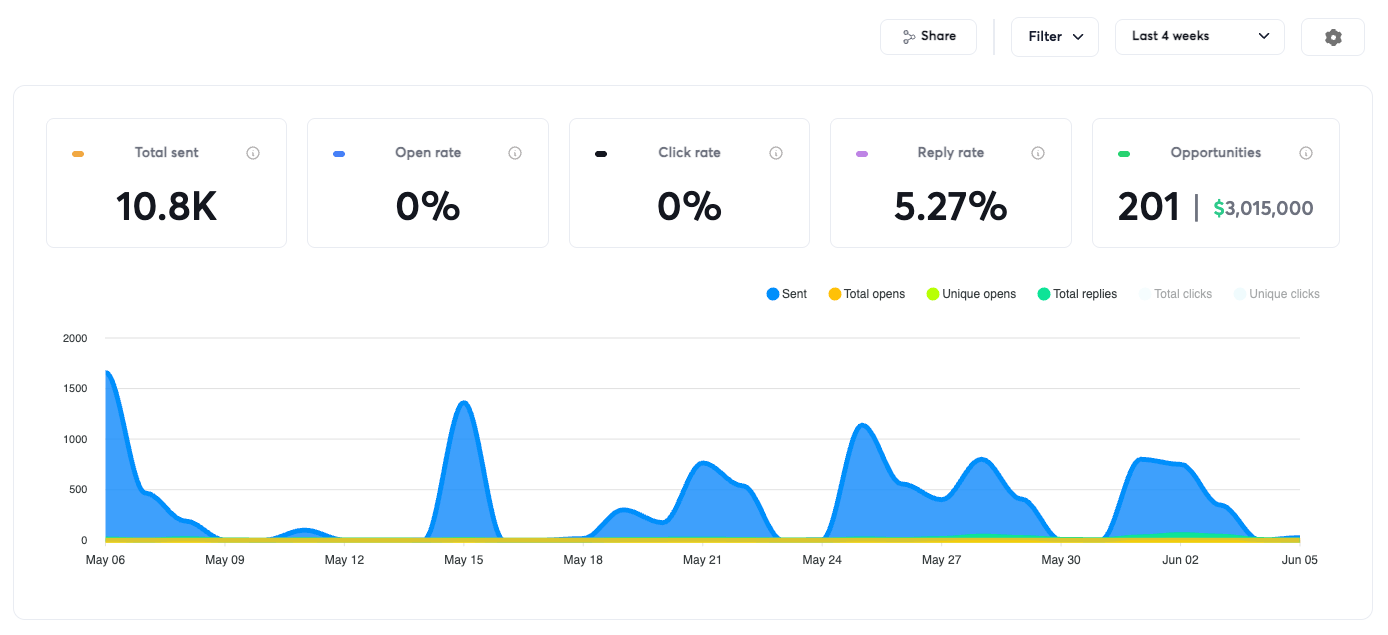
That’s another benefit: you can use this for candidate sourcing too.
The problem most Recruiters and small agencies have isn’t that they’re bad at recruiting; they just don’t know how to run effective cold outbound for business development, which is a totally different skill.
Let’s fix that.
This is a high-level view of what we’re going to build:
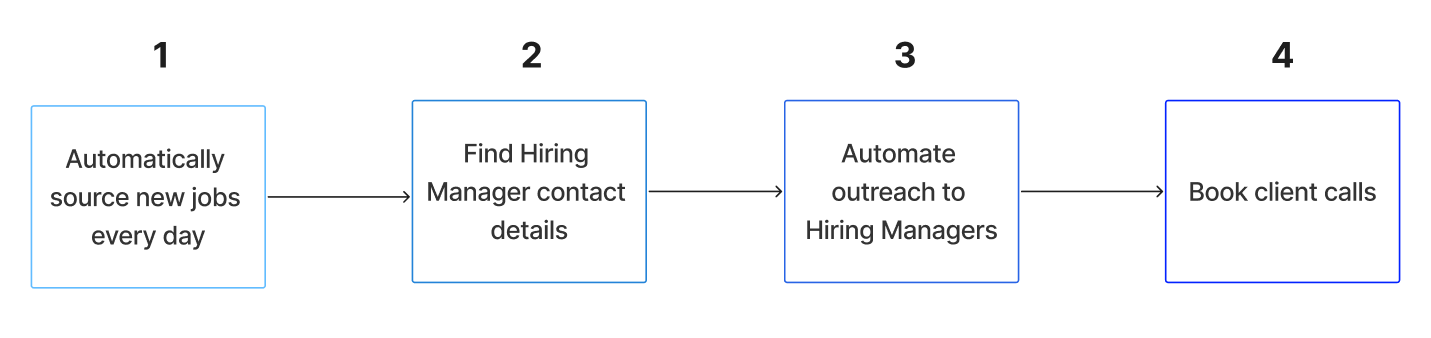
Why this system is different from other generic cold outreach systems:
- It’s purpose-built for Recruiters, by someone who co-ran a recruitment agency
- It starts with the hiring signal instead of suggestive signals like funding
- It is highly targeted to companies hiring right now, instead of blasting a massive list, hoping someone gets back to you, and damaging your reputation
- It’s scalable: if you want to add more roles/geographies, just duplicate
- There is minimal maintenance. Once the system is running, you plug in new leads and let it fly
Getting Started
We’ll do this in three parts:
- Source qualified jobs
- Source hiring managers
- Contact hiring managers at scale
Step 1: Sourcing Qualified Jobs
In an incognito window, go to https://www.linkedin.com/jobs/
Search for a job as if you were a candidate.
For example, ‘Software Engineer in San Francisco’.
Choose a role for which you have a strong candidate to pitch when the hiring manager replies.
Make sure ‘Past 24 hours’ is selected, and select other filters you’d like, such as location (of the companies you want to work with) and salary.
Leave the ‘Companies’ selector blank, like this:
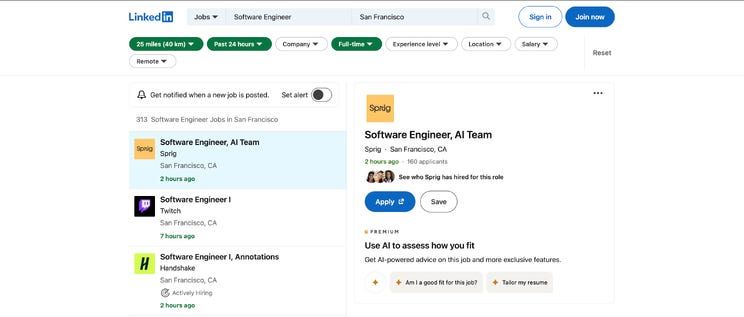
Copy the URL in the search bar. It will look something like this:
Save this URL to a note.
Now go to apify.com and create a free account. You’ll get $5 of credits.
Once logged in, add this actor to your console by clicking ‘try for free’: curious_coder/linkedin-jobs-scraper
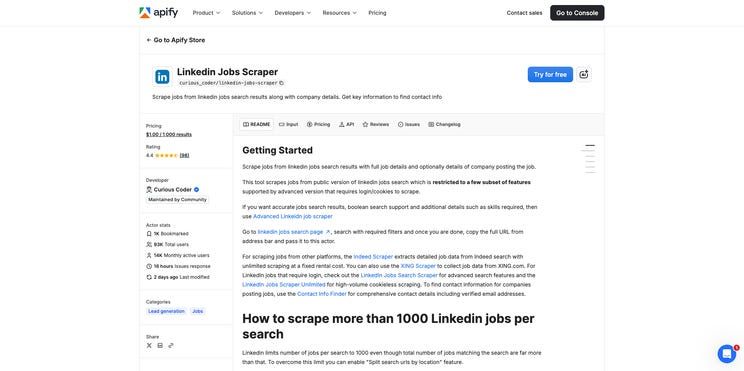
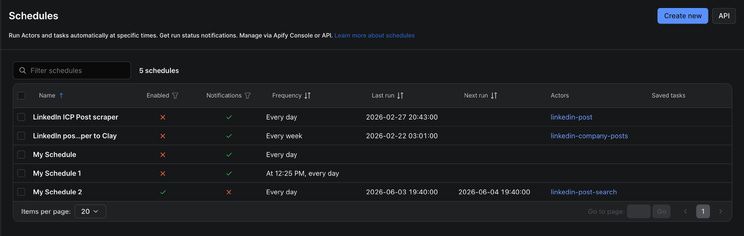
From within your console, click on ‘Schedules’ in the side menu actor.
You’ll land on this screen. Click ‘Create new’:
Name the schedule ‘LinkedIn Jobs Listener’, and set the schedule to run daily, like this:
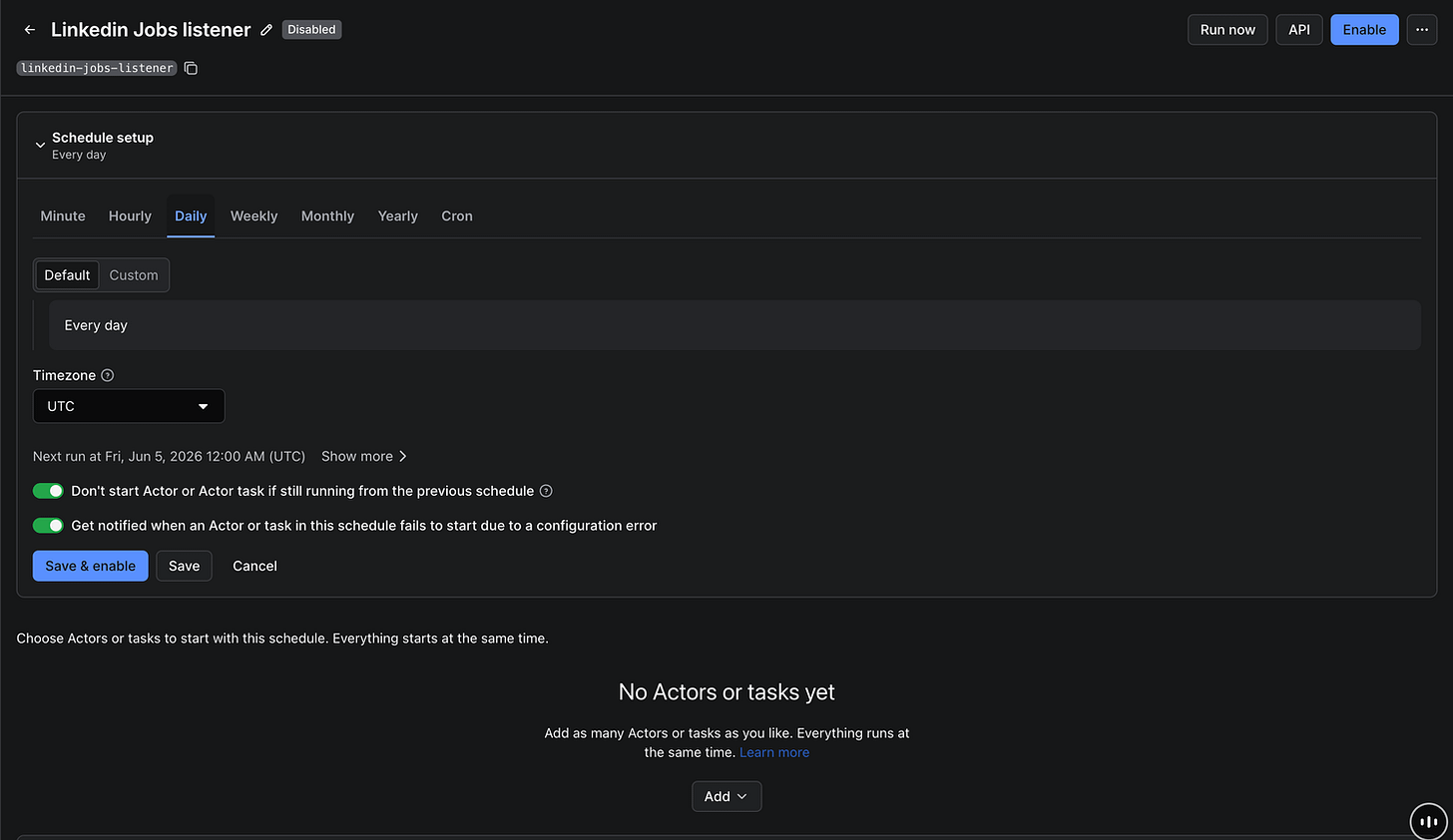
Under ‘No Actors or tasks yet’, click ‘Add’, then ‘Actor.’
In the input box, paste: curious_coder/linkedin-jobs-scraper
Select the actor, then click ‘Continue’.

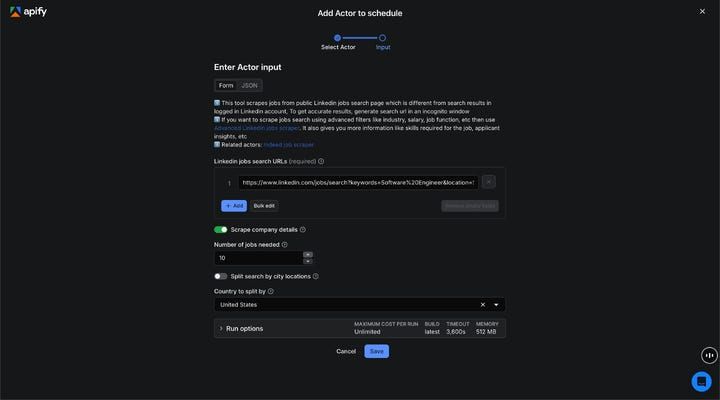
Paste the URL you copied from linkedin.com/jobs into the input box, for example:
Set the number of jobs needed to 100.
Set the country to split by to your country, unless you want to recruit for roles in other countries.
Click ‘Save’.
You’ll land on a screen that looks like this.
Click ‘Enable’.
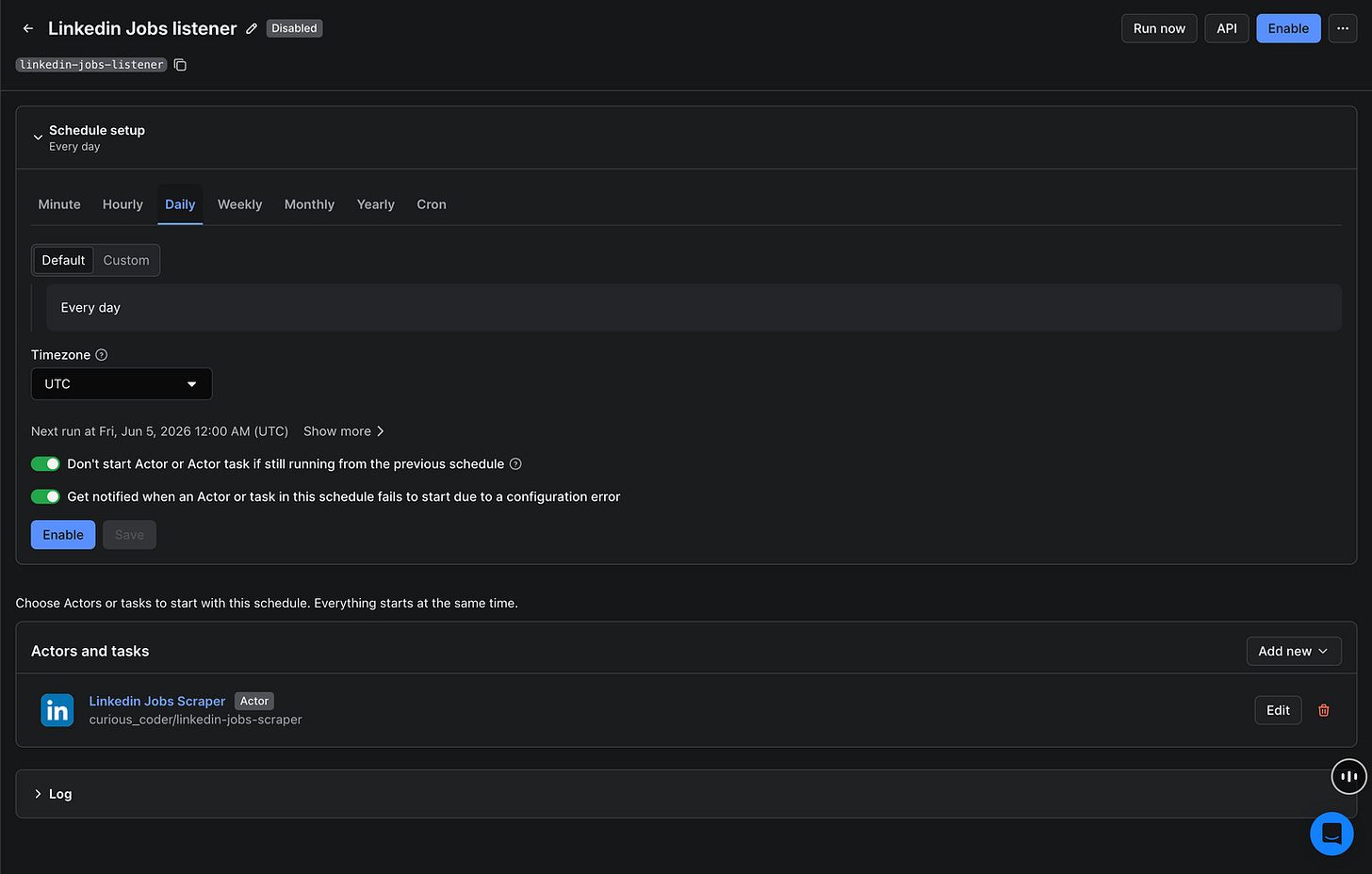
We just configured a system that costs a few cents to run and sources new jobs from LinkedIn daily.
The hiring signal is key because it tells us:
- Who’s hiring
- What they’re hiring for
- Why they’re hiring and giving you the context to position your candidate as the solution
Plus, with new roles every day, you have an unlimited top of funnel.
Let’s export the data so we can find the hiring managers.
Back in your Apify console, click on ‘Actors’, select the LinkedIn Jobs Scraper, then click the ‘Runs’ tab.
You’ll see a list of daily runs with job data.
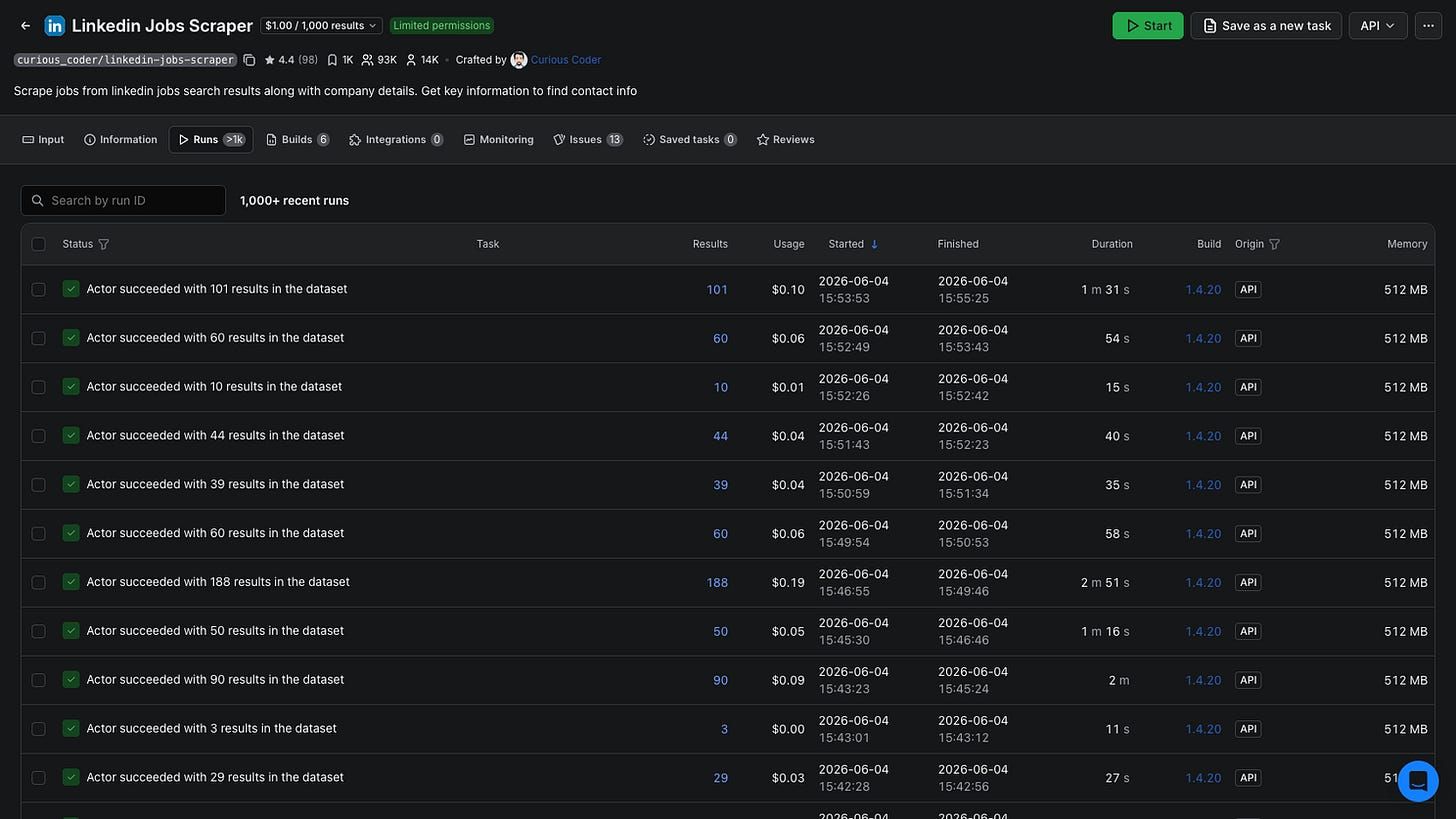
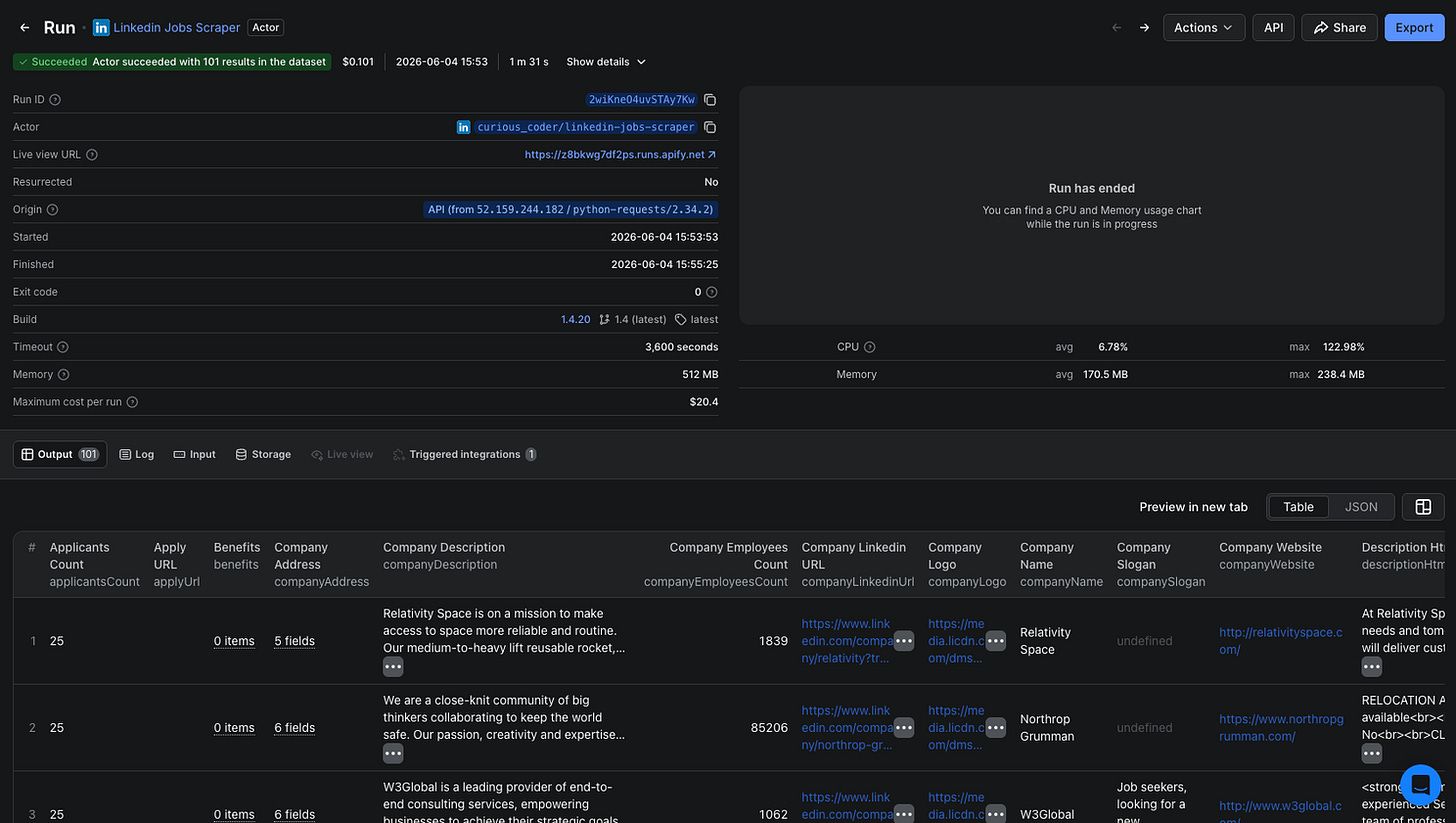
Click on a run to see the data in the ‘Output’ tab, then click ‘Export’.
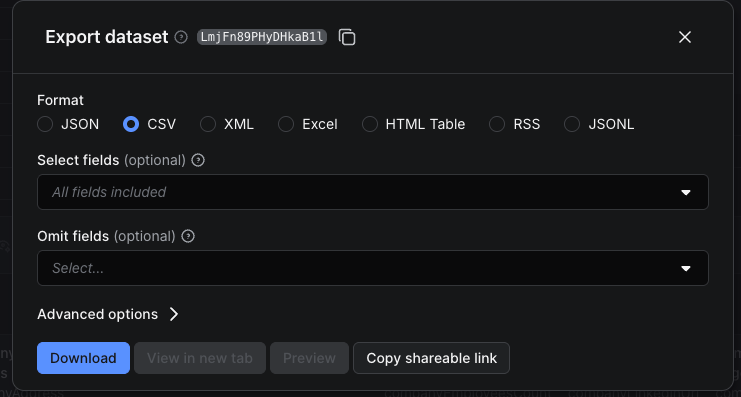
Download the data as a .csv or Excel file.
Import the data into a Google Sheet. See example.
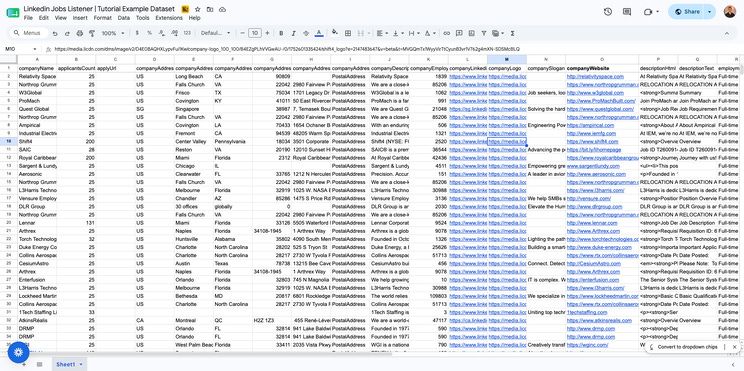
The important column is ‘companyWebsite’, because it allows us to find the hiring managers at those companies.
Take a few minutes to qualify the jobs by filtering out companies by size, industry, and location.
Once that’s done, you have a list of ~100 qualified jobs posted within the last day.
Step 2: Sourcing Hiring Managers
Back in Apify, add this actor: Leads Finder
Click ‘Try for free’.
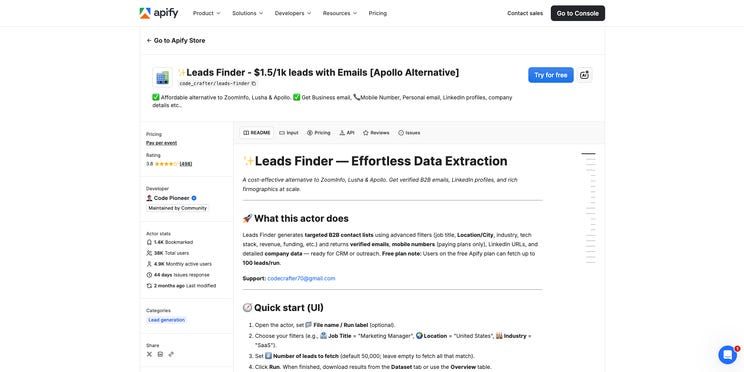
You’ll see a page like this.
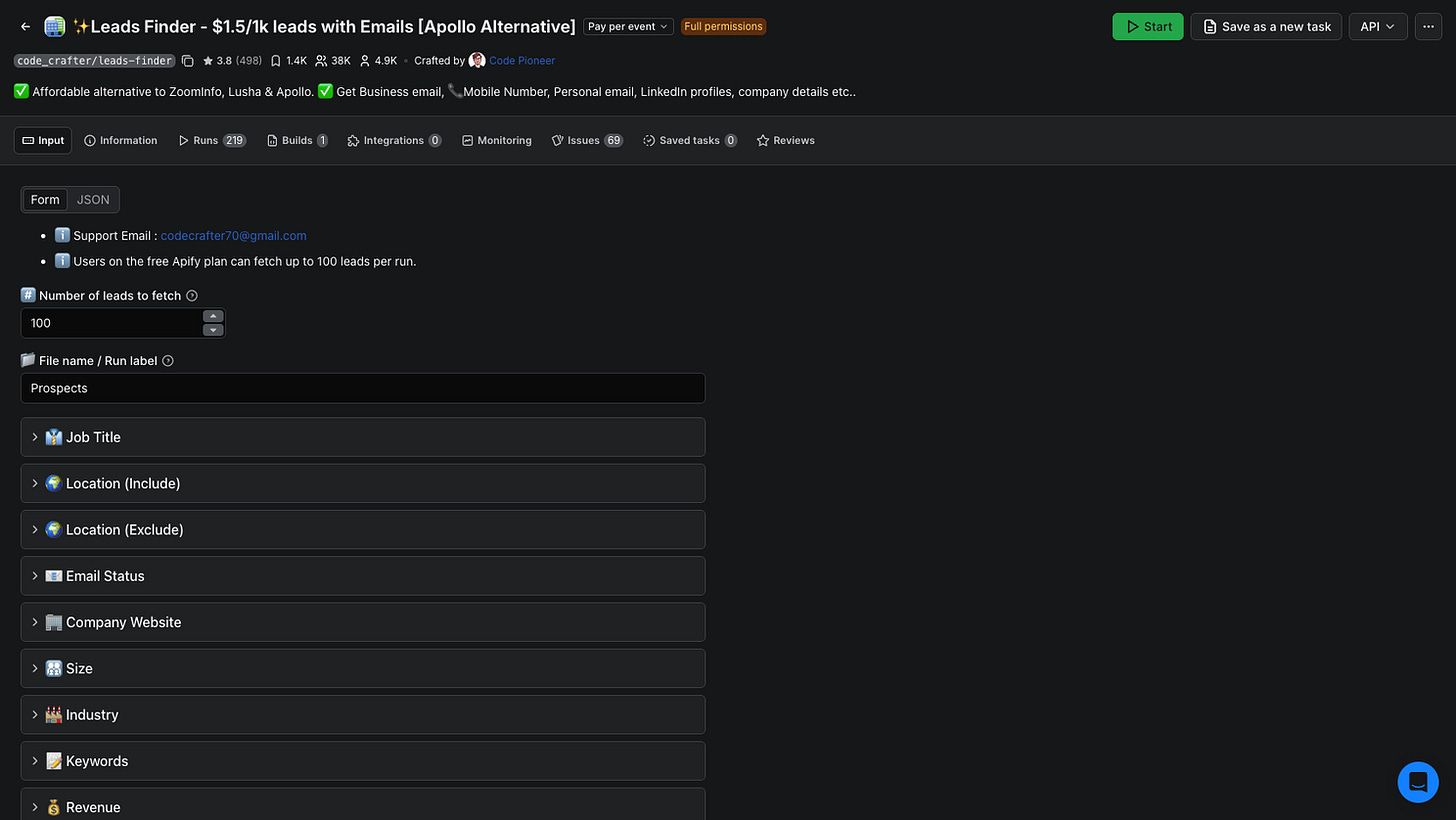
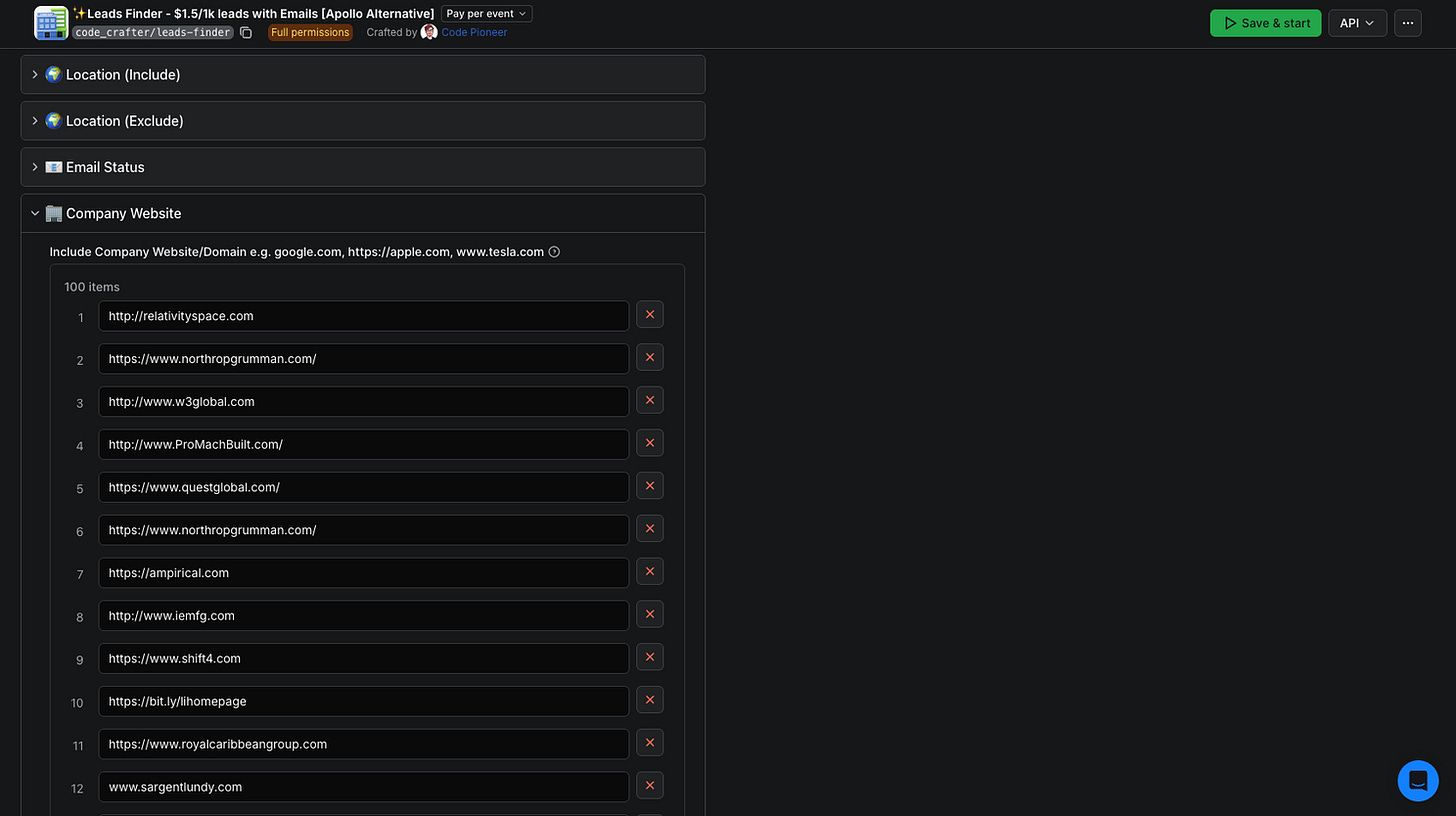
On the ‘Input’ tab, under ‘Company Website’, click ‘bulk edit’, then paste all of the company websites from your Google Sheet.
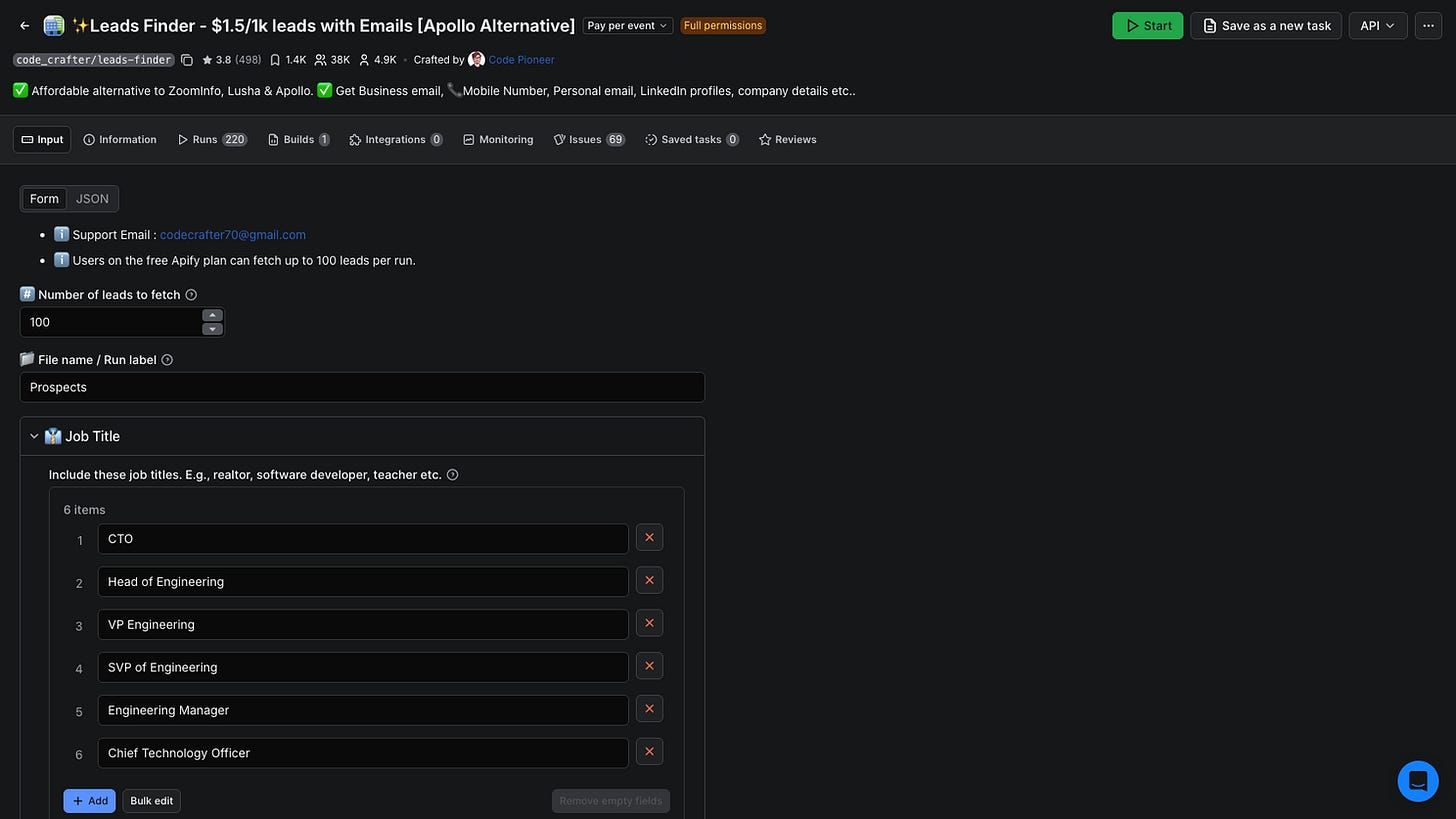
Next, scroll up and define the job titles of the hiring managers you want to target.
For example, if the job you’re pitching is for a Software Engineer, use ‘CTO’, ‘Head of Engineering’, ‘VP Engineering’, etc
Set Email Status to ‘validated’, and then click save and start.
You’ll see a page like this, and in the ‘Output’ tab, all of the data for the hiring managers, including their LinkedIn profiles.
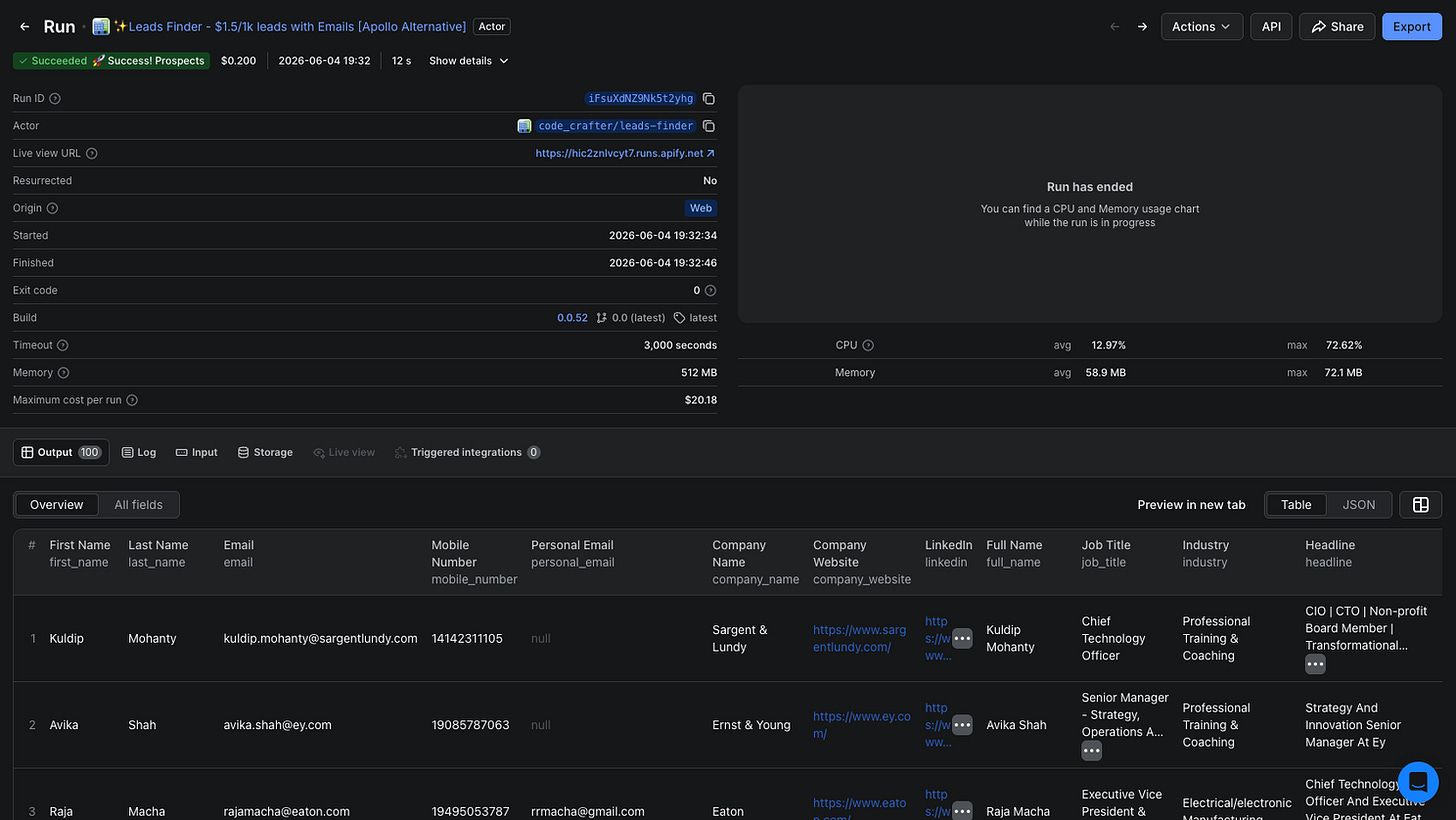
Click ‘Export’ and insert the hiring manager data into a new tab in the same Google Sheet as the jobs.
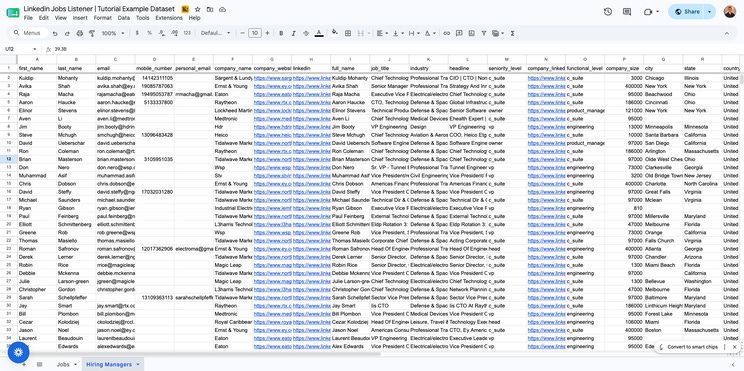
You now have a list of qualified jobs and hiring managers.
We need to match them up so we know who to contact for which job.
Download the Google Sheet, add it to a new conversation in ChatGPT, then ask it to match each hiring manager to a job by company website.
Key instructions for ChatGPT:
- Each hiring manager needs to be on their own row, with the job information duplicated. The following information needs to be in its own column:Hiring Manager First NameHiring Manager Last NameHiring Manager EmailHiring Manager LinkedIn URLCompany NameJob Title (being hired for)Hiring Manager First NameHiring Manager Last NameHiring Manager EmailHiring Manager LinkedIn URLCompany NameJob Title (being hired for)
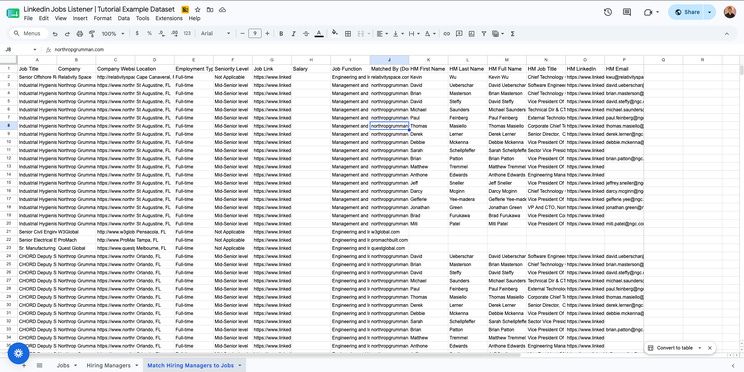
ChatGPT will return a sheet with qualified jobs matched to their respective hiring managers.
Save this chat as a custom GPT, so you can reuse it in the future, then download the sheet.
Step 3: Contacting Hiring Managers
LinkedIn and email are the two primary ways to contact hiring managers.
If you want to get started right now, take your sheet, use the message template below, and start messaging hiring managers from your LinkedIn profile.
Ideally, use a real candidate who’d be a fit for their role:
For example,
Add your message in the connection note, or wait for them to connect and then reach out.
This works, but it takes time.
Let’s set up a basic email system so you can contact the hiring managers automatically.
Setting up a basic cold email system
This is the part where most Recruiters get stuck, so stick with me.
Go to instantly.ai and create an account. The basic growth tier is fine.
Within your dashboard, click on ‘Email Accounts’, then ‘+Add new’
Select ‘Gmail/G-Suite’ within the ‘Done-for-you Email Setup’
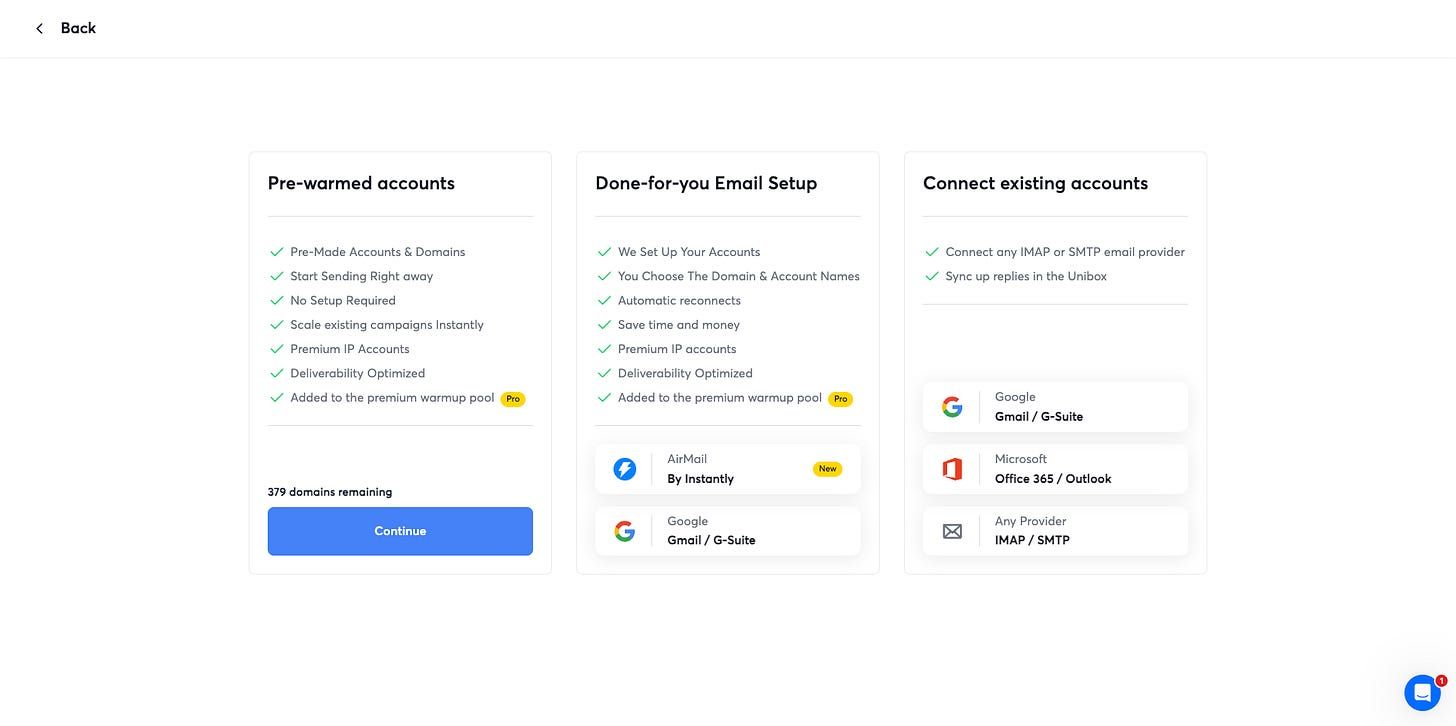
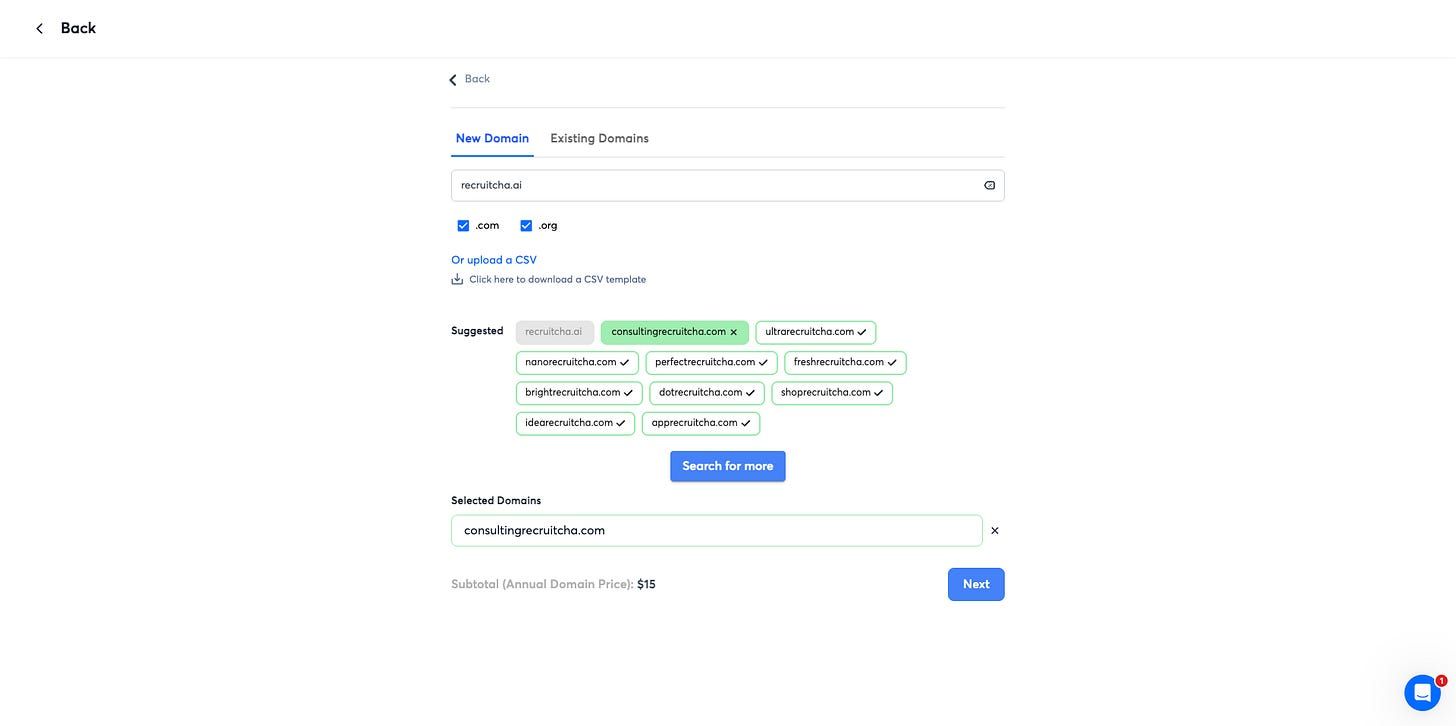
Enter your company website domain into the input box.
Choose one of the recommended burner domains.
For example, my real website is recruitcha.ai, and the burner domain I chose is: consultingrecruitcha.com
Using a burner domain protects your primary website reputation and ensures your real work email address stays out of spam.
Click ‘Next’.
On this screen, enter your real website for the Forwarding Domain, your Sender name, Last name, and your first name under ‘Email’, like this:
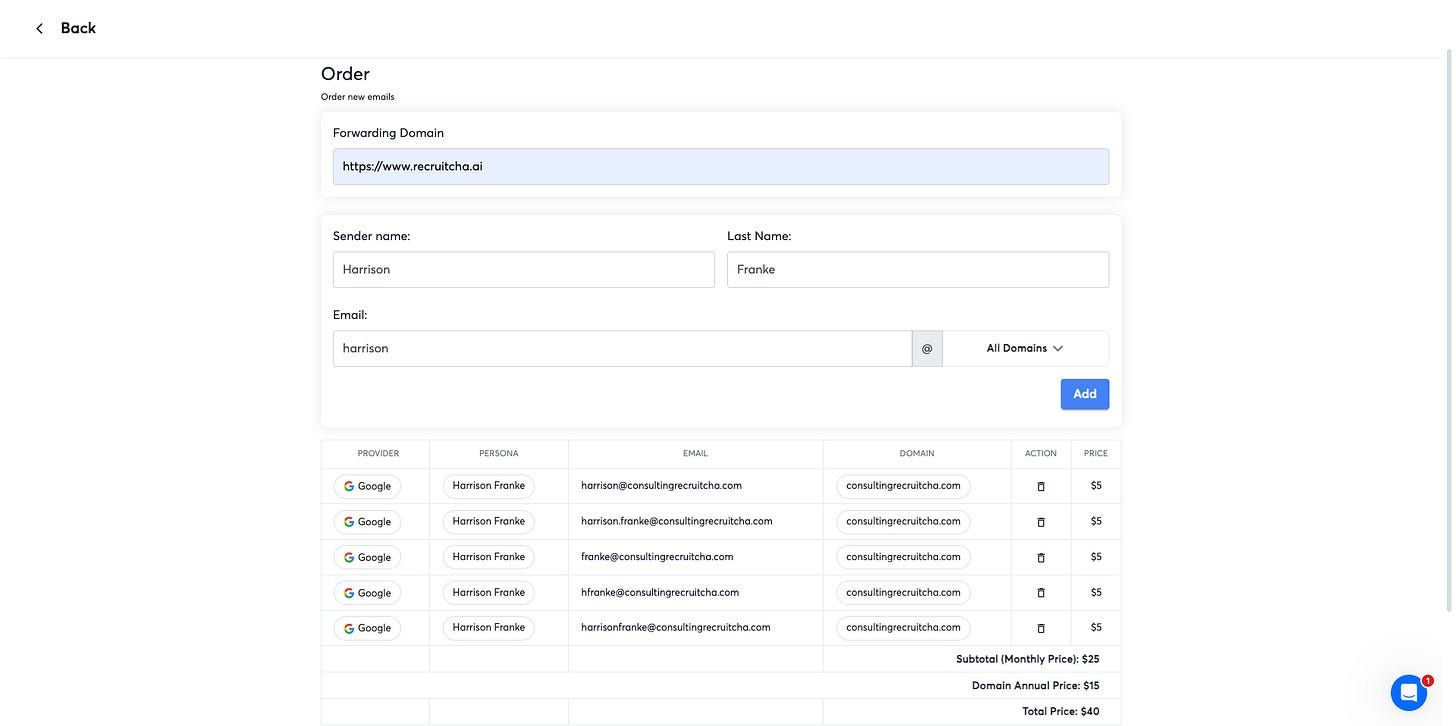
Make sure you have at least 5 sending accounts.
Each sending account can send ~30 emails per day, so you can reach up to 1050 hiring managers per week.
Click ‘Place Order’.
Back in the Email Accounts tab, you’ll see your email accounts warming.
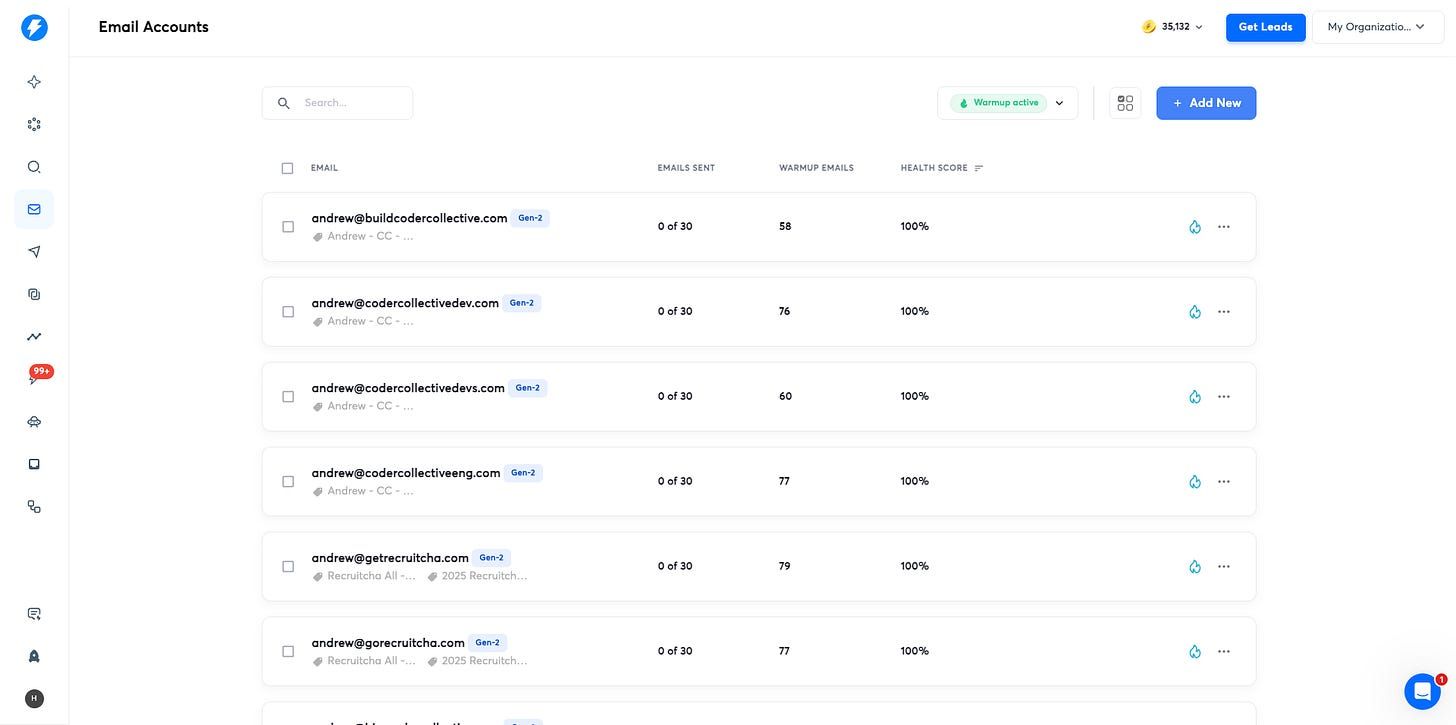
These new email sending accounts need 3 weeks to warm up properly.
Bummer, I know, but in the meantime, test your messaging with manual outreach via LinkedIn.
When ~80 warmup emails have been sent for that sending account, you’re good to go.
Click on the ‘Campaigns’ tab, then ‘+Add new’.
Name your campaign ‘LinkedIn Jobs Listener.’
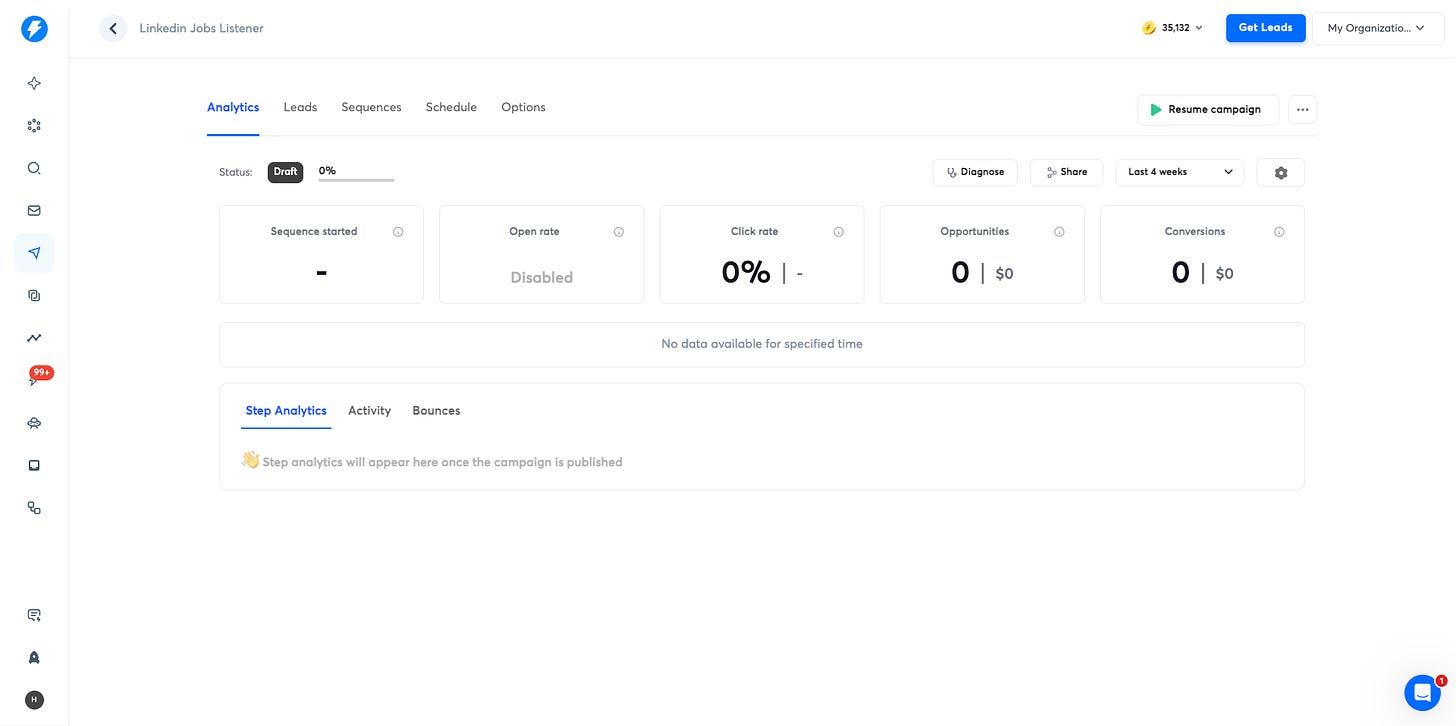
Click on ‘Leads’, and then upload your sheet from ChatGPT as a .csv.
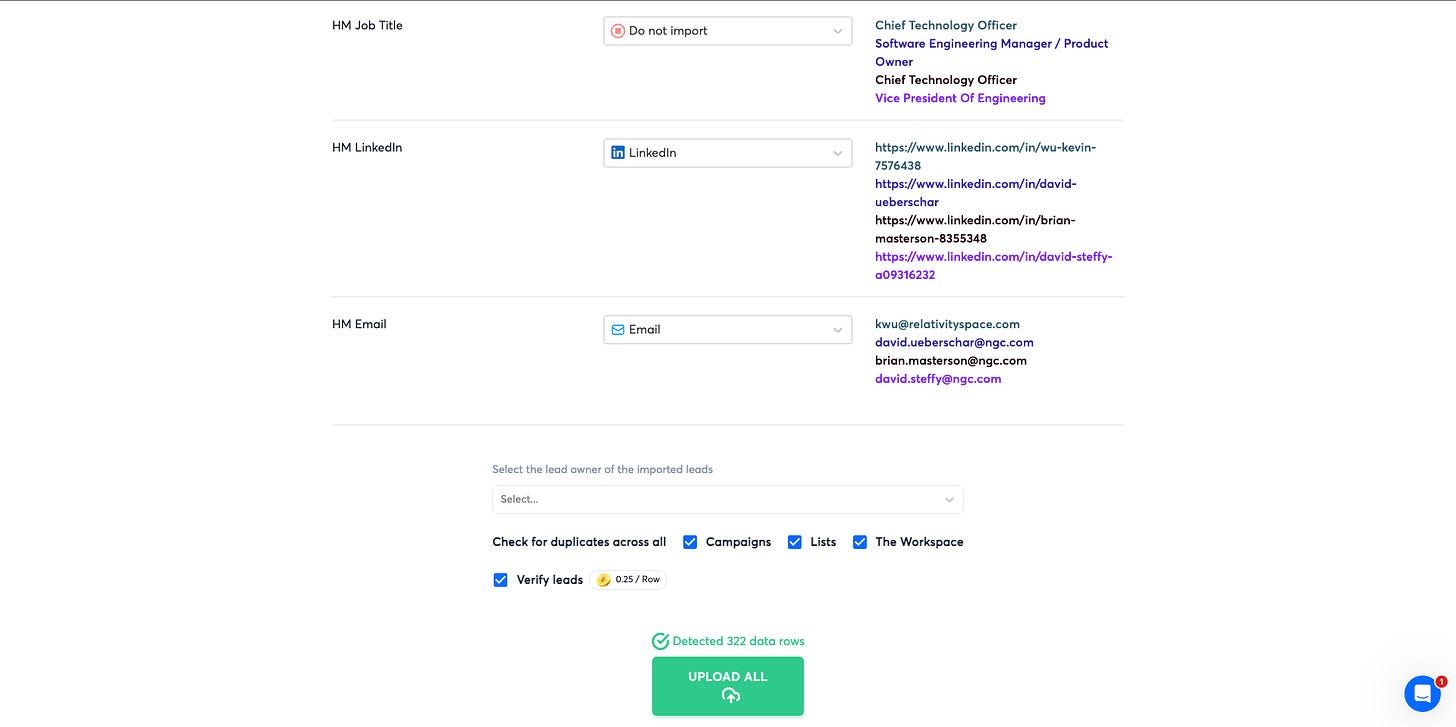
Map the Column Names to the data types in Instantly, for example:
- Hiring Manager First Name → First Name
- Hiring Manager Email → Email
- Hiring Manager LinkedIn → LinkedIn
- Job Title (from the job post) → Custom Variable
Click ‘Verify leads’, and then ‘Upload All’.
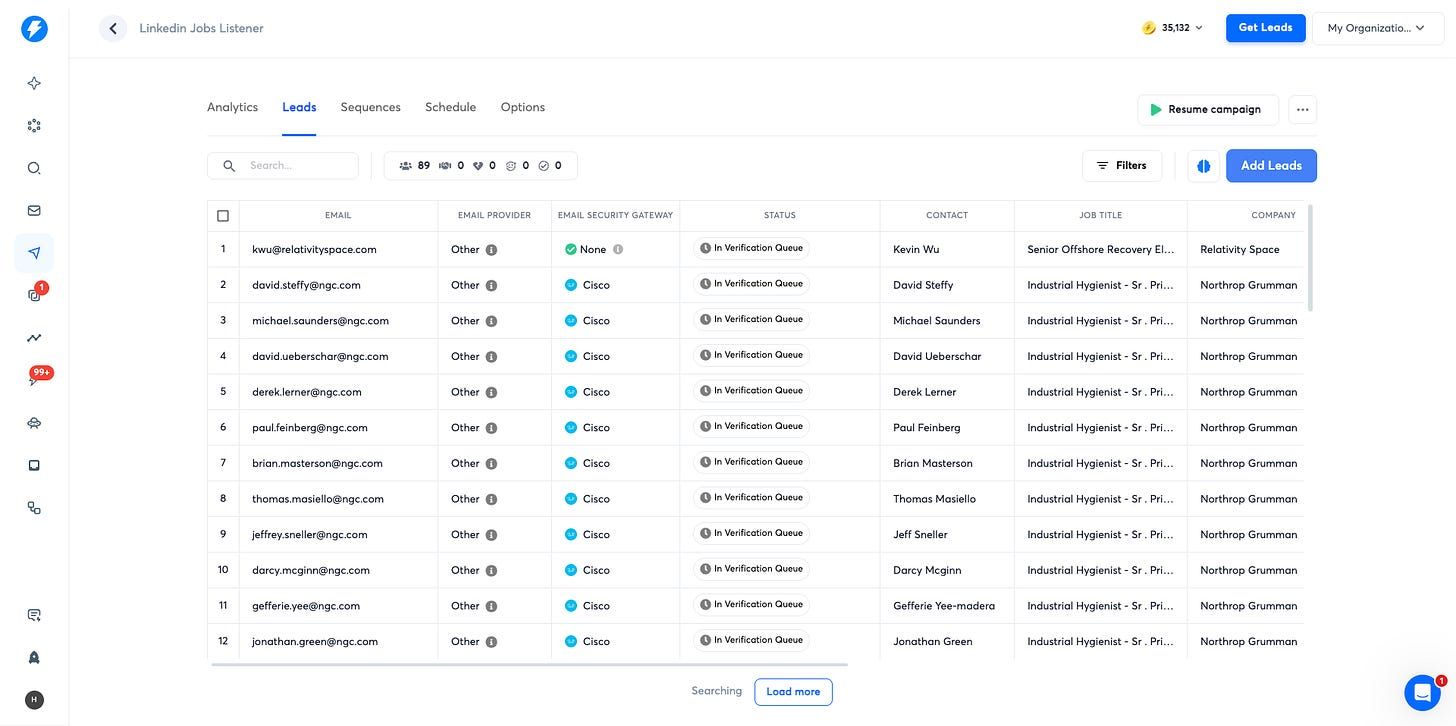
In the Leads tab, you’ll see all of your leads for this campaign.
Every day, you can add more leads by repeating the steps above.
Note: When ChatGPT matches hiring managers to jobs, make sure it uses the same variable names, like Hiring_Manager_First_Name, so you don’t need to change variables when you import new leads into Instantly.
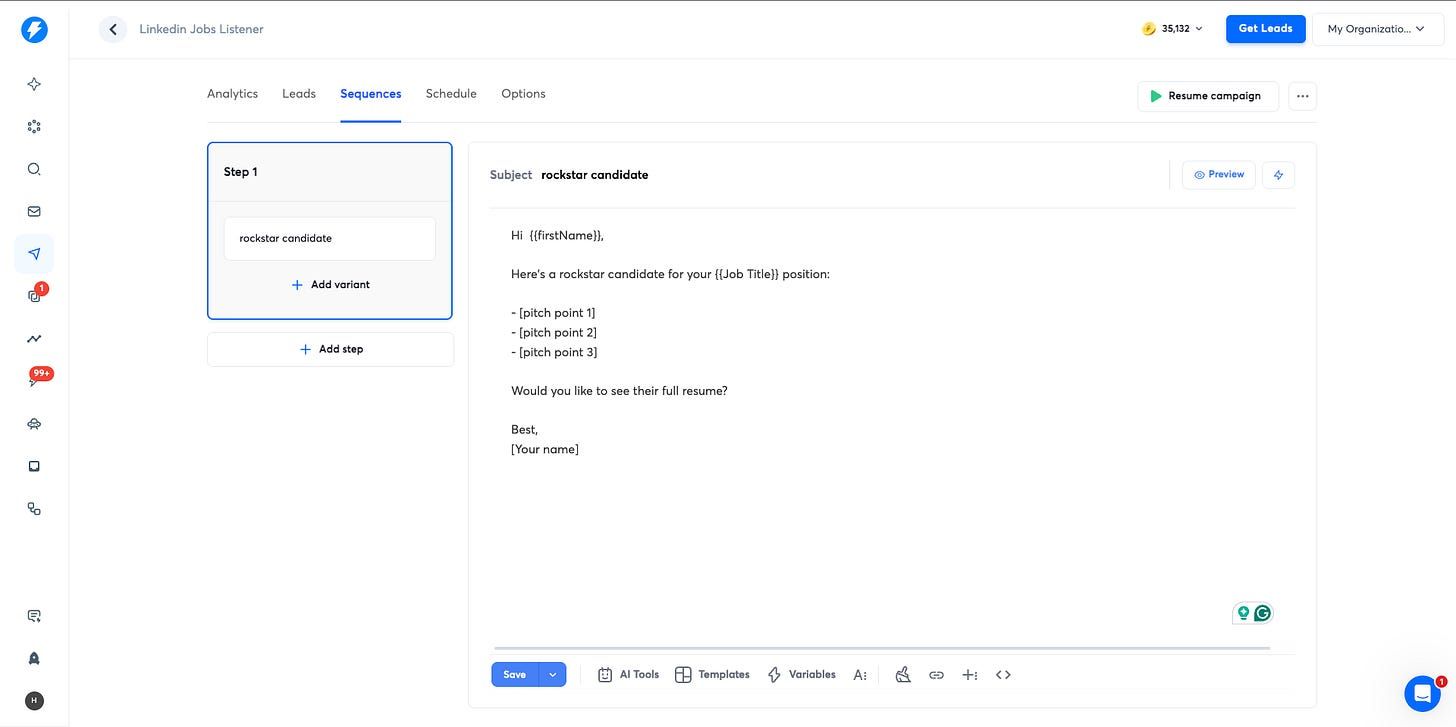
Click on ‘Sequences’, and then use this template:
Subject: rockstar candidate
Hi {{firstName}},
Here’s a rockstar candidate for your {{Job Title}} position:
- [pitch point 1]
- [pitch point 2]
- [pitch point 3]
Can I share their full resume?
Best,
[Your name]
Click the ‘Preview’ button to see what your email will look like when it is sent.
Now click ‘Add step’.
Set the next message to send 2 days later, leave the subject blank, and use this template:
Hi {{firstName}},
This candidate also has strong experience with [mention a specific tool, skill, or notable past company relevant to the role].
I’ve got their resume here for you. Can I share it?
Best,
[Your name]
P.s. We work on a performance basis with companies like [insert your best clients].
Then click ‘Add step’ again, set the days to 3, and add this copy:
Hi {{firstName}},
One thing from this candidate’s background that stood out: at their last role, they managed to [insert a specific achievement, e.g., increase sales by 20% / cut project delivery time in half].
I’m confident they could bring that same value to your team.
Are you open to an introductory call, and I can tell you more?
Best,
[Your name]
P.s. We work exclusively in this sector and have an incredibly strong matrix of candidates ready to contribute to your team.
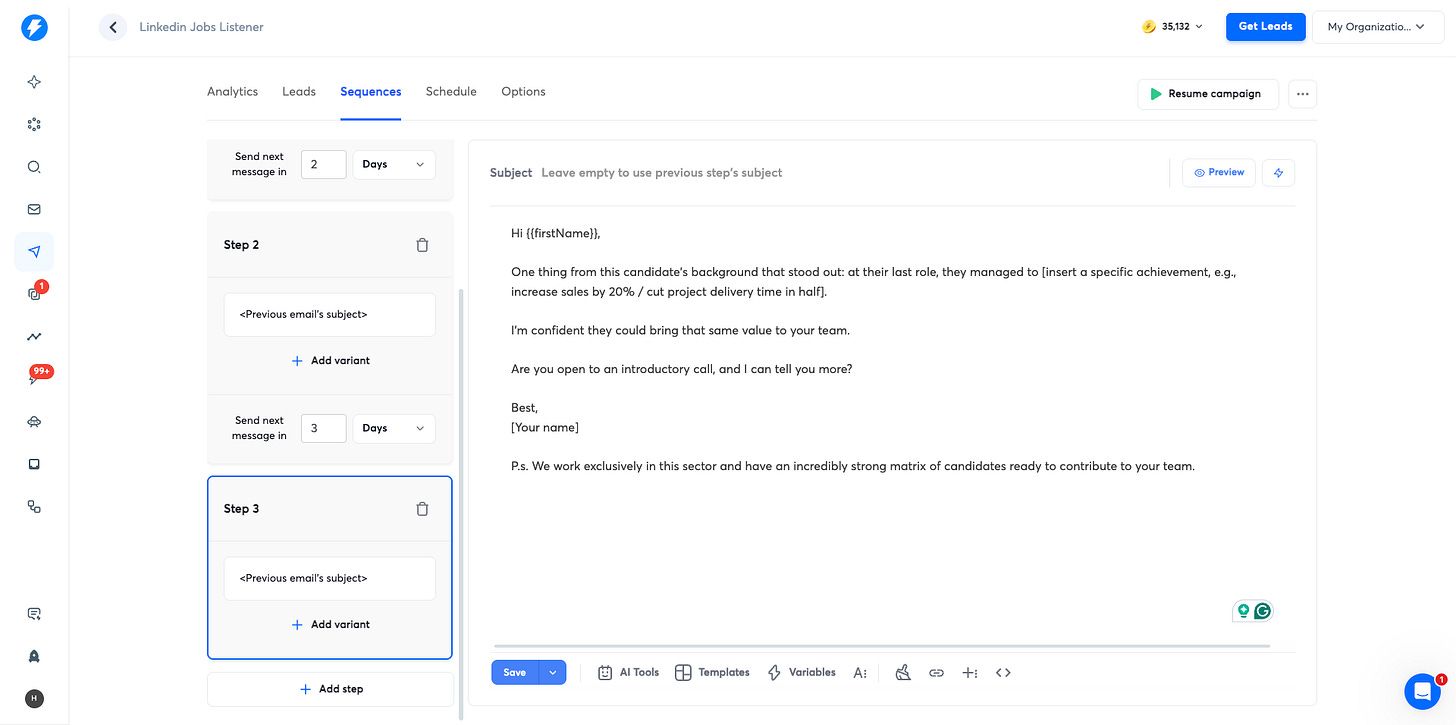
Feel free to change the copy; this is just an example.
Press ‘{{‘ on your keyboard to insert variables imported from ChatGPT, such as Company Name, Industry, etc.
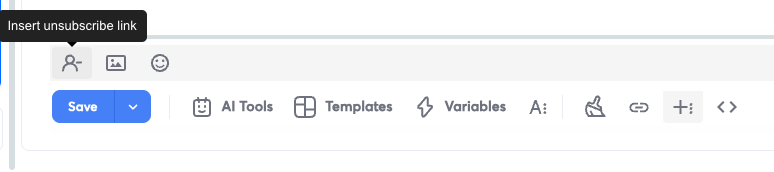
Then, click on the ‘+:’ icon (more rich), insert the unsubscribe link for each email, and click ‘save’:
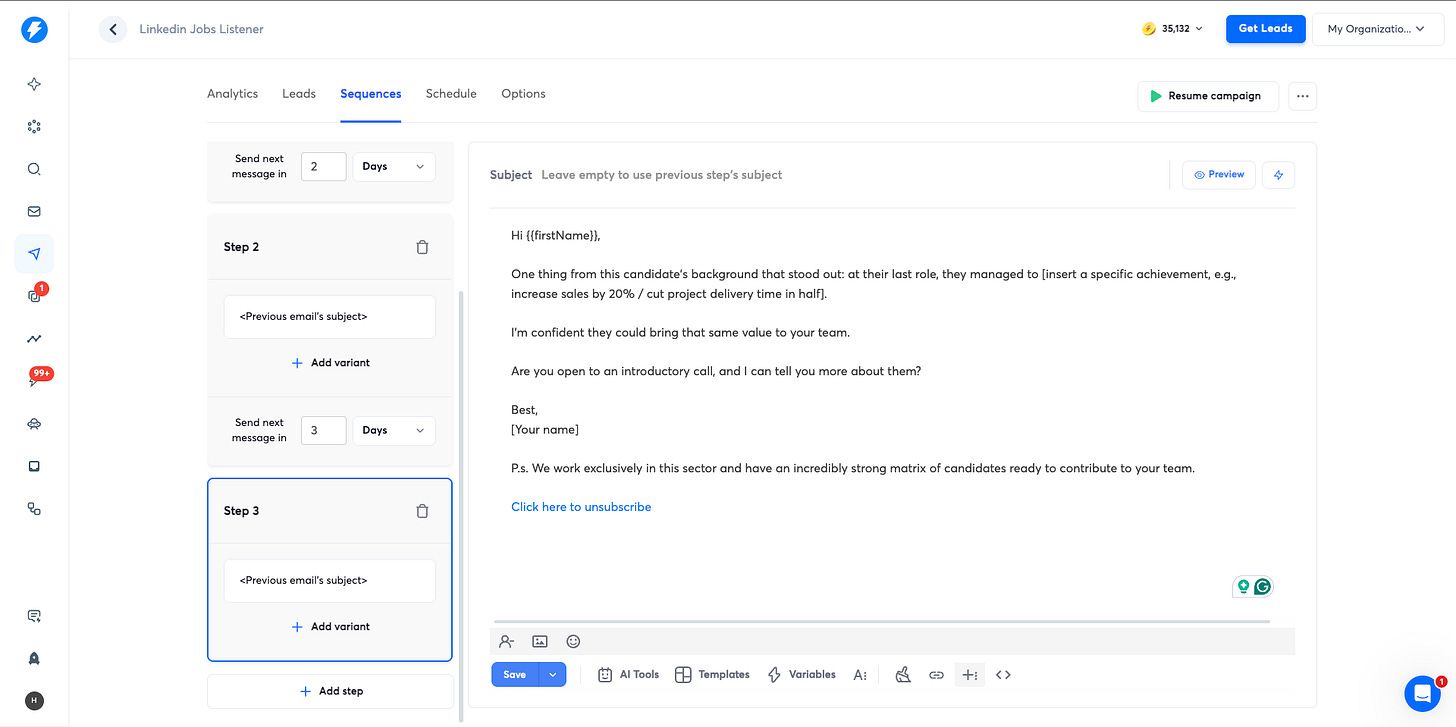
Each email should have the unsubscribe link at the bottom, like this:
We’re nearly done.
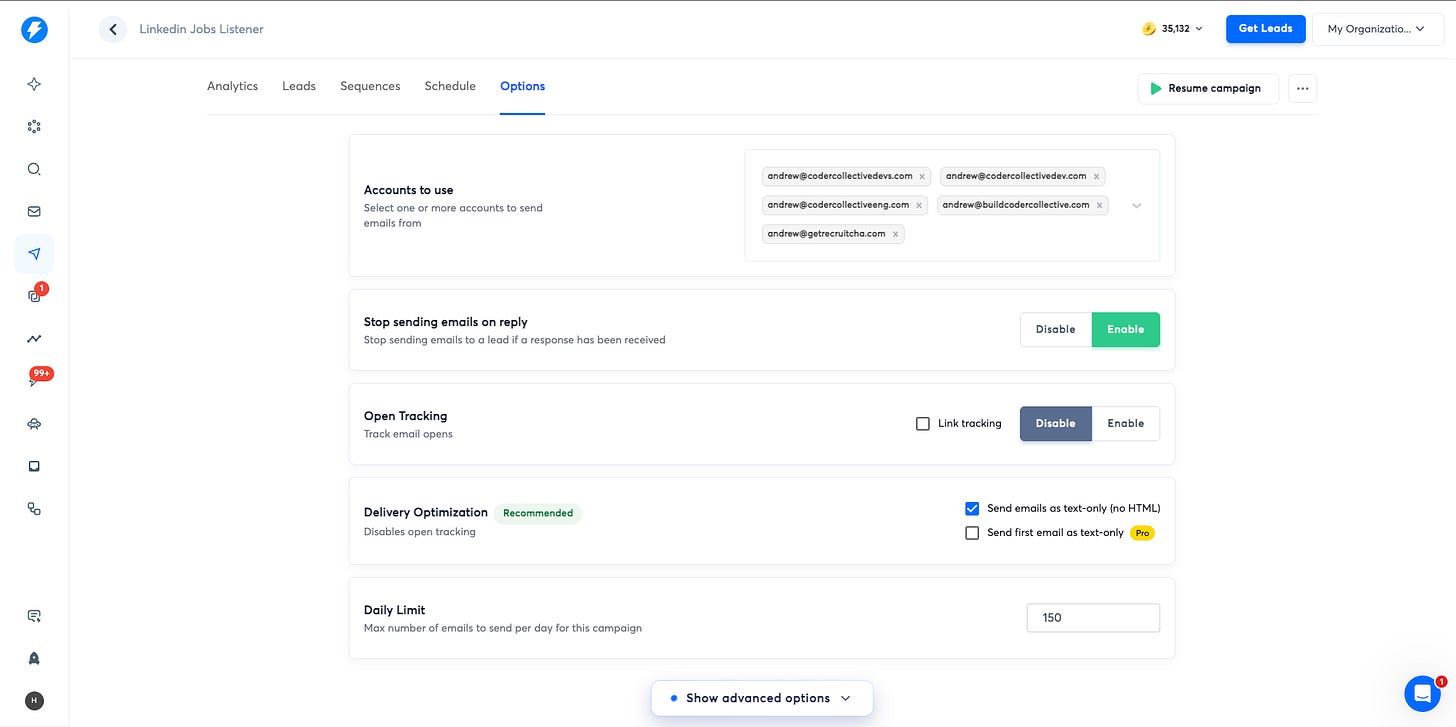
Go into ‘Options’, select all of your email sending accounts, and copy these settings:
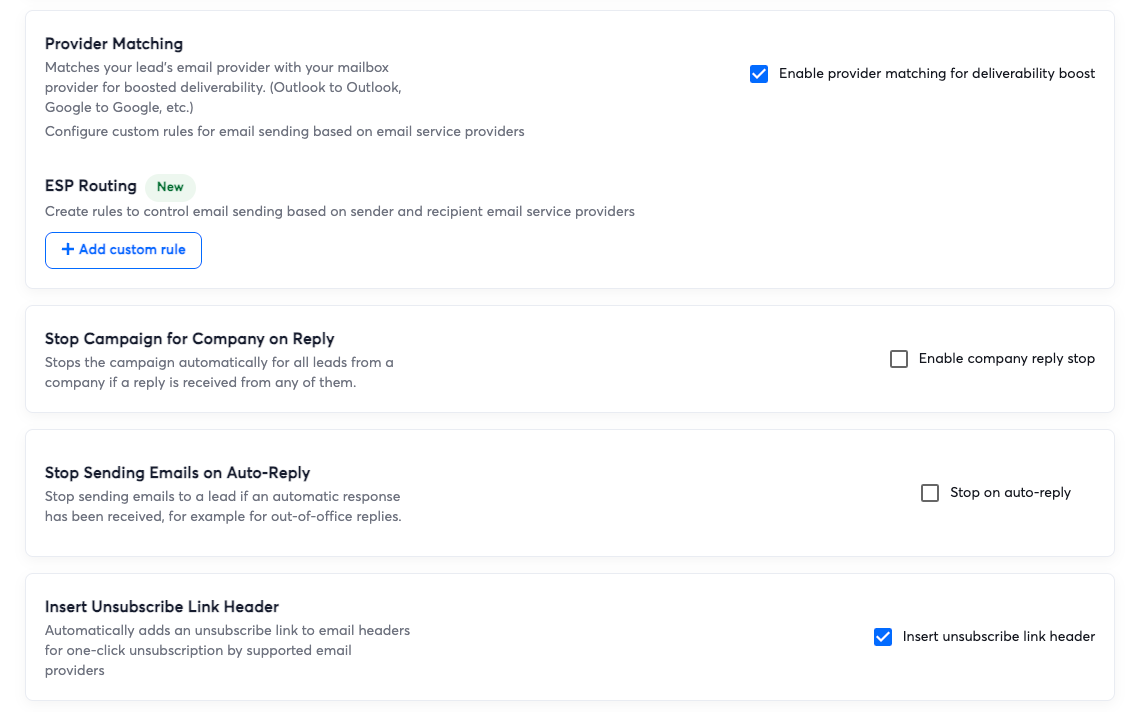
Lastly, click on ‘Show advanced options’, then enable ‘Provider Matching’ and ‘Insert the unsubscribe link header’.
Click ‘Save’, then ‘Launch’, and you’re done!
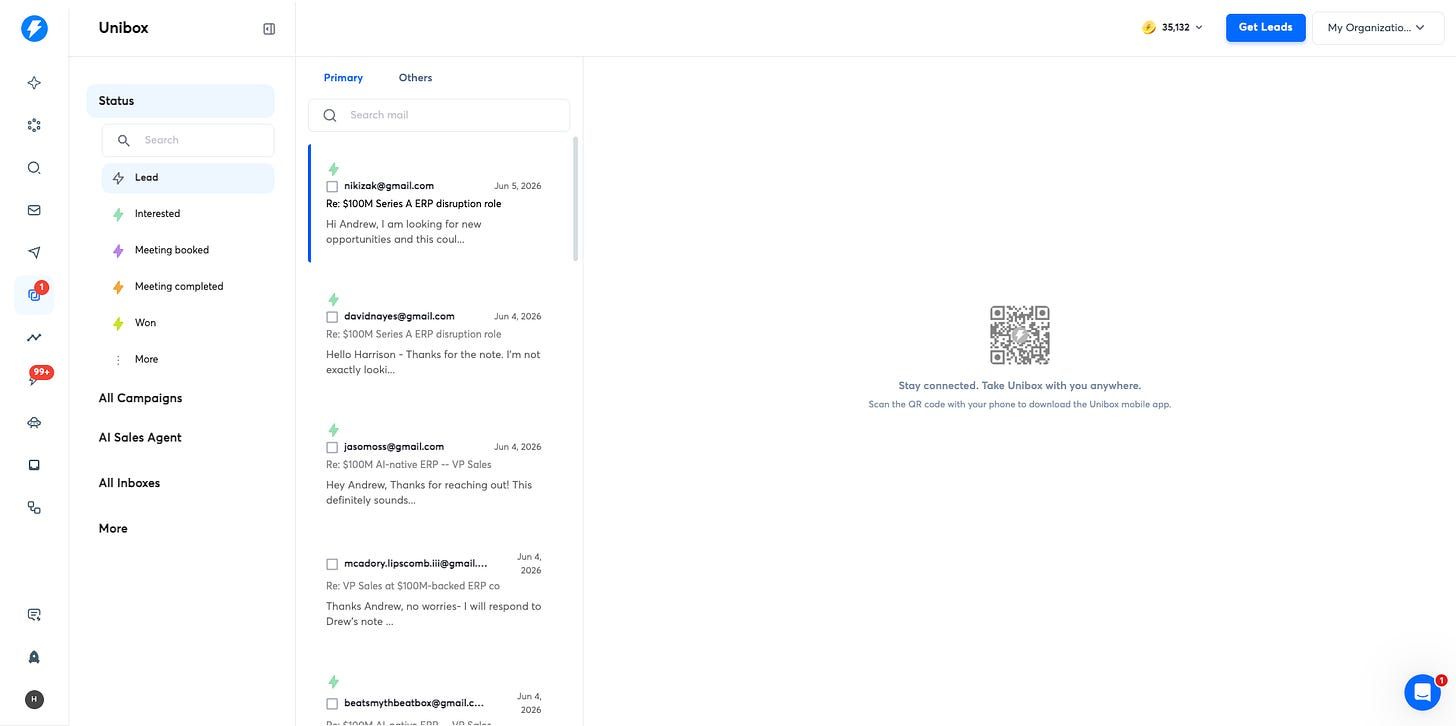
You’ll see replies in your Unibox.
What to do now
Every day, the LinkedIn job actor will automatically source new jobs.
Repeat these steps to keep scaling:
- Export and qualify the new jobs from the LinkedIn job actor in a Google Sheet
- Copy the company websites
- Plug them into the Leads Finder actor to find the hiring managers
- Have ChatGPT match the hiring managers to jobs
- Import the new leads into Instantly
As you use the system, these are the things that are going to break, or that you’ll want to automate:
- Each Apify run costs a few cents, but eventually, your free $5 credits will run out, and you’ll need to top up.
- After a few thousand cold emails, your email sending accounts will be burned, and you’ll need to buy new ones to keep landing in the inbox. Follow the same steps as before to buy new email sending accounts. I’d recommend keeping 30% of your email sending capacity in a warmup pool so when a sending account gets burned, you can swap it out with a new one.Follow the same steps as before to buy new email sending accounts. I’d recommend keeping 30% of your email sending capacity in a warmup pool so when a sending account gets burned, you can swap it out with a new one.
- You’ll need to run multiple campaign variations for different hiring managers (CEOs vs CTOs) to test messaging
- Use ChatGPT to help you build a flow in zapier.com or make.com to automatically match hiring managers to jobs and upload those new leads into Instantly
Scaling business development is hard, but not impossible.
Generic lead gen agencies charge $5k a month because they know within 3 months they’ll have tapped your entire market and want to get their money’s worth before you jump ship.
The systems we build at recruitcha.ai purposely avoid this by focusing on high-intent hiring signals, quality over quantity, and long-term partnerships with a pay-for-performance model.
If you’d like to rebuild your client pipeline with a trusted partner, I’d welcome a conversation here.
Thank you for your time.
-Harrison Franke
Co-Founder @ Recruitcha.ai